![HireLogic Icon 240.jpg]](https://support.hirelogic.com/hs-fs/hubfs/HireLogic%20Icon%20240.jpg?height=40&name=HireLogic%20Icon%20240.jpg)
You can integrate your Zoho Recruit ATS with HireLogic to streamline your interview workflow. With this integration, HireLogic can automatically join interviews, capture notes, and export interview summaries back to Zoho Recruit, keeping your candidate records up to date while minimizing manual work.
Pre-requisites
To connect HireLogic with Zoho Recruit, you must have:
- Access to a Zoho Recruit account
- Permission to authorize third-party integration in Zoho Recruit
If you do not have the required permissions, please reach out to your Zoho Recruit administrator.
Step 1: Open Zoho Recruit Integration Settings in HireLogic
- In HireLogic, go to Workspace Settings
- From the HireLogic dashboard, click your workspace icon at the bottom left of the screen.
- Select Workspace Settings
- Select Integrations
- Scroll down to Zoho Recruit from the list of Applicant Tracking Systems
Step 2: Connect Zoho Recruit
- Click Connect on the Zoho Recruit integration tile
- Sign in to your Zoho Recruit account
- Review and confirm the required permissions to allow HireLogic access
Once authorized, the connection between HireLogic and Zoho Recruit will be established.
Step 3: Configure Webhooks in HireLogic
After the connection is complete:
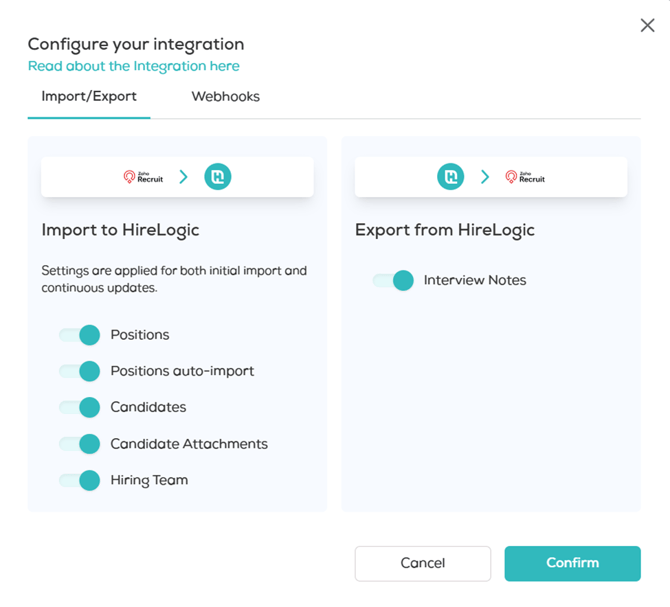
- Open the Import/Export tab and ensure all switches are enabled
- Navigate to the Webhooks tab
- Enable the following webhook events:
- Meetings Created/Meetings Updated
- Meetings Deleted
- Copy the Webhook URL (this URL will be used in Zoho Recruit).
- Click Confirm to save your settings.
Note: You can update these settings at any time by clicking Configure in the Zoho Recruit integration component.
Step 4: Configure Webhooks in Zoho Recruit
- Use a function-based webhook
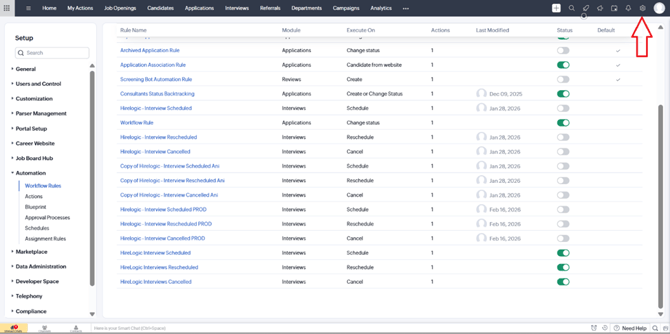
- Click the Setup button (top right of the screen)
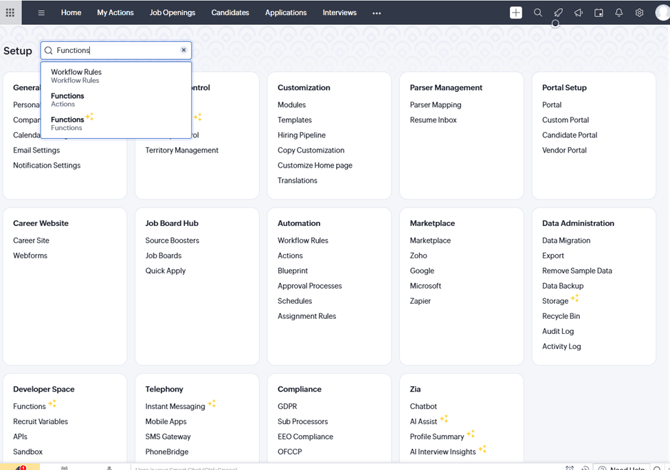
- Search for Functions
- Select Functions (Actions)
- Select Configure Function
- Select Write your own
- Create the two following functions :
- Create/Update
- Delete
- Give each function the following:
- Function Name
- Display Name
- Description (optional)
- Module
- Select Interviews
- Select Interviews
- Create the two following functions :
- Click the Setup button (top right of the screen)
- Paste the following source code
url = "https://recruit.zoho.in/recruit/v2/Interviews/" + interviewId;
response = invokeurl
[
url :url
type :GET
connection:"recruitmaster"
];
info response;
interviewData = response.getjson("data").get(0);
interviewData.put("eventType",eventType);
interviewData.put("candidateEmail",candidateEmail);
interviewData.put("candidateSecondaryEmail",candidateSecondaryEmail);
// Send webhook
requestBody = interviewData.toString();
headers = Map();
headers.put("Content-Type","application/json");
hirelogicurl = "https://app.development.hirelogic.com/api/workspace-integrations/webhooks/zohorecruit?t=<custom_integration_token>";
response = invokeurl
[
url :hirelogicurl
type :POST
body:requestBody
headers:headers
];
- For each function, replace the hirelogicurl field with the webhook URL that can be found in the Zoho Recruit integration interface within HireLogic.
- Select Edit Arguments
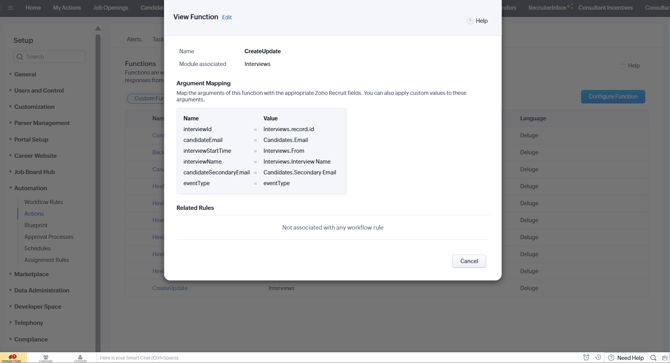
- Map the arguments. To do so:
- Go back to the Create/Update function and click on its name
- Copy the Name for: interviewId, candidateEmail, interviewStartTime, interviewName, candidateSecondaryEmail, and eventType
- Go back to the Edit Arguments page
- For each argument, insert the name of the argument (copied earlier) into the Key field
- For interviewID
- For the Param Value for interviewID, input # and select Interviews as the Module and then select Interview ID as the filed
- For candidateEmail
- For the Param Value for candidateEmail, input # and select Candidates as the Module and then select Email as the filed
- For interviewStartTime
- For the Param Value for interviewStartTime, input # and select Interviews as the Module and then select From as the filed
- For interviewName
- For the Param Value for interviewStartName, input # and select Interviews as the Module and then select Interview Name as the filed
- For candidateSecondaryEmail
- For the Param Value for candidateSecondaryEmail, input # and select Candidates as the Module and then select Secondary Email Name as the filed
- For eventType
- Input eventType as the Param Valu
- Map the arguments. To do so:
-
-
- Repeat edit arguments steps for the Delete function.
- Please note, for the Delete function, there is only a subset of arguments that are needed.
- Repeat edit arguments steps for the Delete function.
-
- Click Save for each function after you edit the arguments
- Find Automation and select Workflow Rules
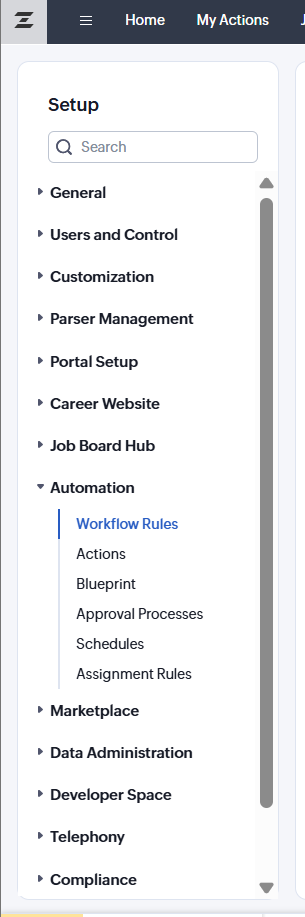
- Create three Workflow Rules
- HireLogic Interview Scheduled
- Module – Interviews
- Rule Name – HireLogic Interviews Scheduled
- Click Next
- Select On a record action
- Select Schedule
- Click Next
- Select All Interviews as which records you would like to apply the rule on. Click Next
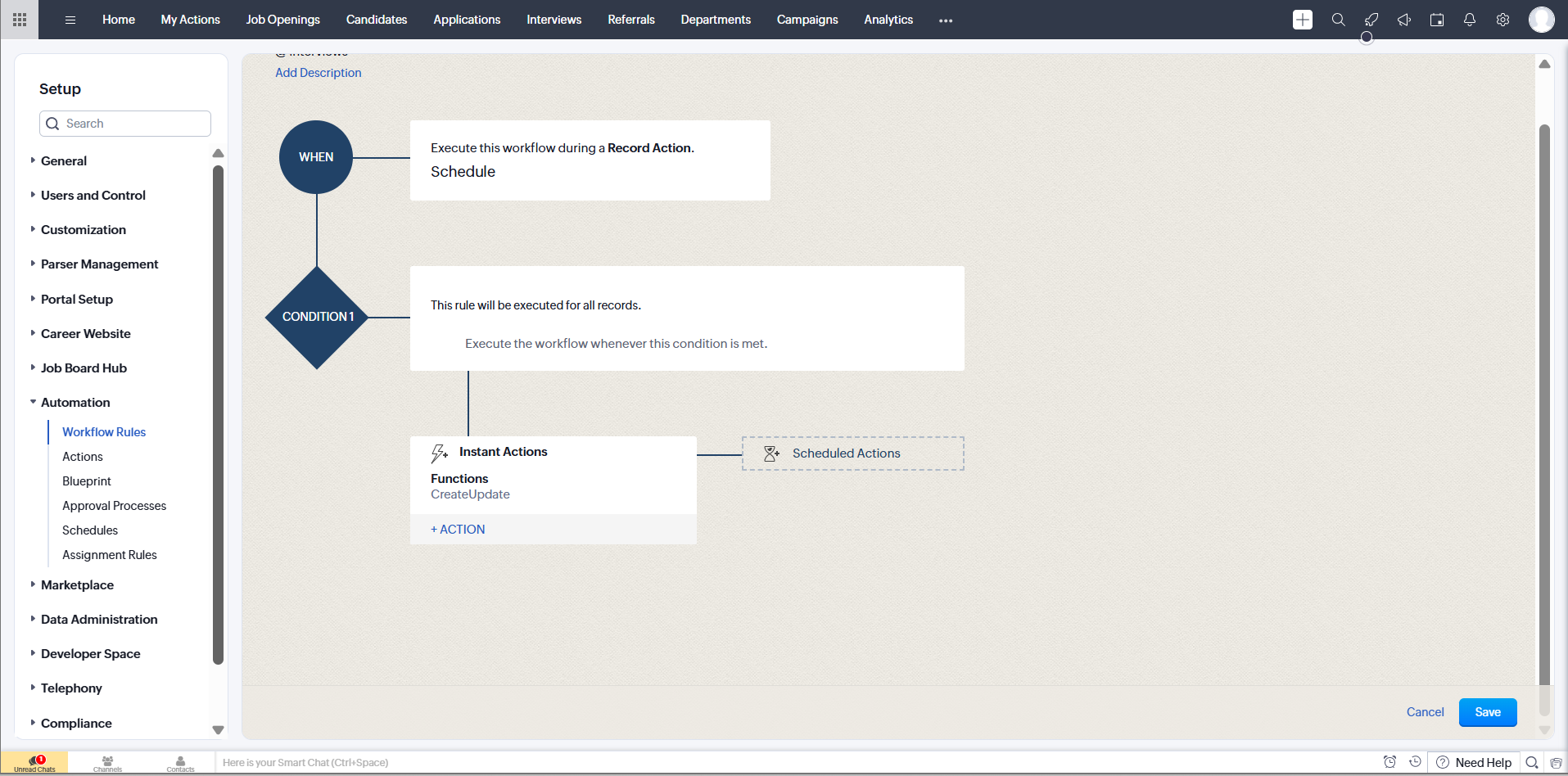
- For Instant Actions, select the Function you created for when interviews are scheduled (Created/Updated). When you find the function, click Associate
- Click Save
- HireLogic Interview Scheduled
-
- HireLogic Interview Rescheduled
- Module – Interviews
- Rule Name – HireLogic Interviews Rescheduled
- Click Next
- Select On a record action
- Select Reschedule
- Click Next
- Select All Interviews as which records you would like to apply the rule on
- For Instant Actions, select the Function you created for when interviews are rescheduled (CreateUpdate)
- Select Associate
- Click Save
- HireLogic Interview Cancelled
- Module – Interviews
- Rule Name – HireLogic Interviews Cancelled
- Select On a record action
- Select Cancel
- Click Next
- Select All Interviews as which records you would like to apply the rule on
- For Instant Actions, select the Function you created for when interviews are cancelled (Delete)
- Click Save
- HireLogic Interview Rescheduled
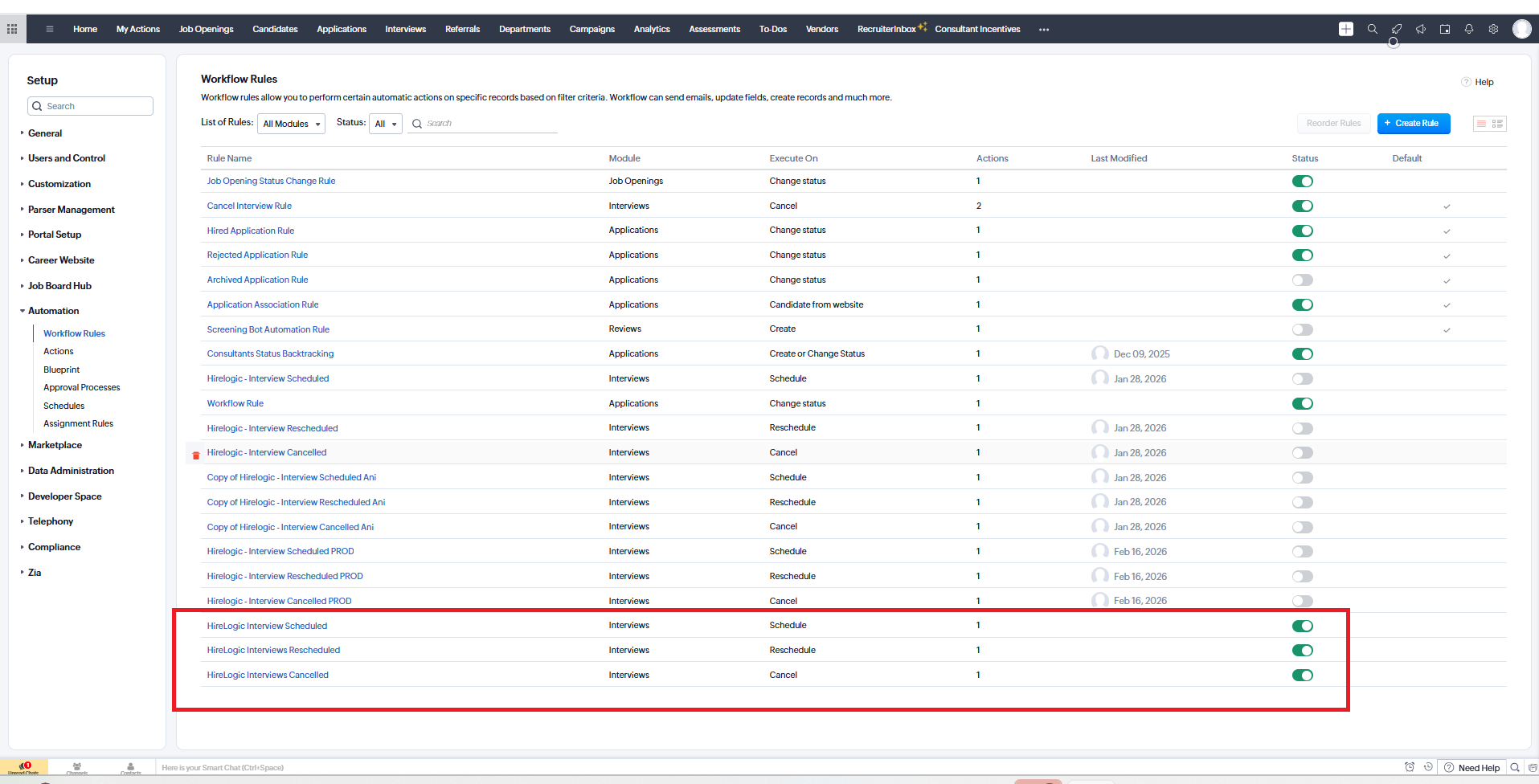
- Make sure the Status is On for the Workflow Rules you created
- Create
- Update (Rescheduled)
- Delete
How to create meetings within Zoho Recruit
- Open a position
- Click Interviews from the left hand side
- Click Add Interviews
- Continue through the various steps to create the interview. Please note:
- Interviewer must be a member or admin of the corresponding HireLogic workspace
- External meeting link e.g. Zoom, Teams or Google Meet can be provided
- When multiple candidates are selected HireLogic will import the name of the first candidate but will export candidate summaries for all selected candidates
Interview Notes Handling
When an interview is conducted, HireLogic exports notes to Zoho Recruit as follows:
- Interview Notes
- If the interview was created in Zoho Recruit and synchronized to HireLogic via webhook, notes are exported directly to Interview Notes.
Candidate Notes
- If an Interview ID is available, notes are associated with the corresponding interview
- If an Interview ID is not available, the candidate is identified using email and phone number, and notes are exported to Candidate Notes only